When preparing to send your design to the printer, choosing the right file format is one of the most important steps to ensure high-quality, error-free results. The wrong format can lead to blurry prints, color mismatches, missing elements, or costly delays - something no one wants when launching packaging, brochures, business cards, or any printed material. Below, we break down the best file formats for printing, what makes them ideal, which to avoid, and key tips to ensure your documents are delivered correctly - all tailored to help you streamline the printing process and get flawless results.
1. The Best File Formats for Printing (Recommended)
Not all file formats are created equal for printing. The best options are optimized for high resolution, accurate color reproduction, and compatibility with professional printing equipment. Here are the top recommended formats, along with their uses:
a. PDF (Portable Document Format) - The Gold Standard
PDF is the most widely accepted and preferred file format for printing - and for good reason. It’s universal, preserves your design’s layout, colors, and fonts exactly as you intended, and works seamlessly with all professional printers.
For printing, always use a high-resolution, print-ready PDF with these key features:
Flattened layers: Ensures no editable elements shift or go missing during printing.
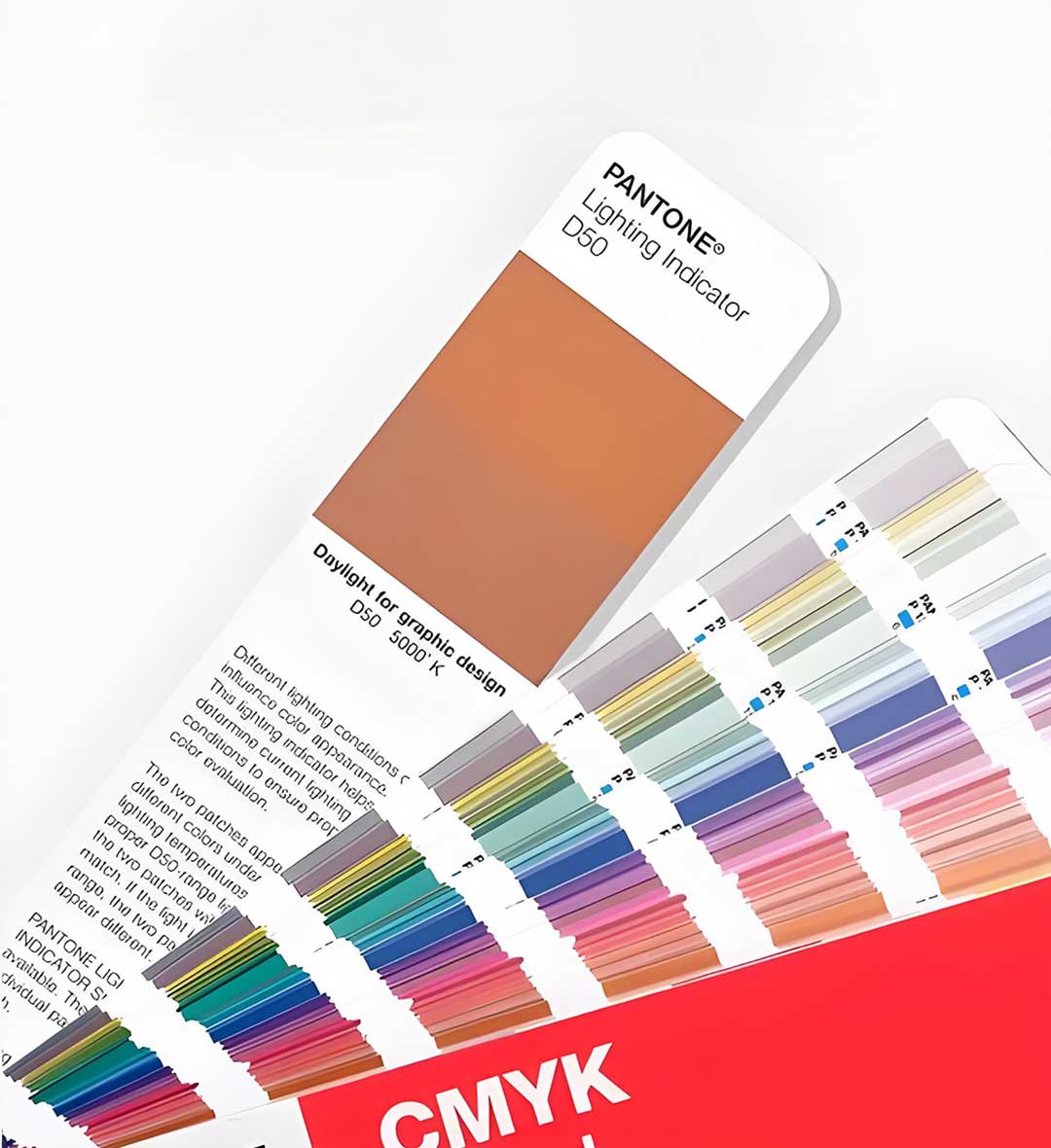
CMYK color mode: Critical for accurate color reproduction (avoid RGB, which is for digital screens).
300 DPI resolution: Prevents blurriness or pixelation in text, images, and graphics.
Bleed and trim marks: If your design has edge-to-edge elements, include a 0.125-inch (3mm) bleed and trim marks to guide the printer during cutting.
PDFs work for all printing projects - from business cards and flyers to packaging and multi-page brochures. They’re the safest choice for ensuring your design translates perfectly to print.
b. Vector Files (.AI, .EPS, .SVG) - For Logos & Graphics
Vector files are ideal for logos, icons, and graphics that need to be resized without losing quality. They’re created with mathematical equations, so they stay crisp and sharp at any size - from a tiny business card logo to a large billboard.
Common vector formats for printing:
.AI (Adobe Illustrator): The original vector file format, fully editable and perfect for complex designs.
.EPS: A universal vector format compatible with most design and printing software - great for sharing logos or graphics.
.SVG: Ideal for simple graphics or logos, often used for digital and print alike (ensure it’s saved with print optimization).
Note: Vector files are best used alongside a print-ready PDF. Send both if you’re sharing logos or custom graphics to ensure the printer has flexibility.
c. High-Resolution Raster Files (.TIFF, .JPG) - For Photos & Simple Designs
Raster files are made of pixels, so they’re best for designs with photos or complex imagery. For printing, they must be high-resolution to avoid blurriness:
.TIFF: A high-quality, lossless format (no quality loss when saved) ideal for photos or designs with fine details. It supports CMYK and 300+ DPI.
.JPG: A compressed format, best for simple designs or photos where file size is a concern. Use the highest quality setting (100% in design software) and ensure it’s 300 DPI.
Avoid low-resolution JPGs (72 DPI, often from social media) as they will print blurry.
2. File Formats to Avoid for Printing
Some file formats are designed for digital use only and will cause problems when printed. Steer clear of these:
.PNG: Great for digital graphics (transparency), but not ideal for printing - low resolution or compression can cause quality issues.
.GIF: For digital animations only; low resolution and limited color range make it unsuitable for print.
Editable source files (.PSD, .INDD): These are working files, not print-ready. They have unflattened layers, missing fonts, or incorrect color modes that will cause printing errors.
Low-resolution files (any format below 300 DPI): Will print blurry, pixelated, or unprofessional.
3. Key Tips for Delivering Printing Documents
Even with the right format, a few extra steps will ensure your documents are print-ready:
✅ Confirm color mode: Always use CMYK (not RGB) for printing. RGB colors look bright on screens but will print dull or mismatched.
✅ Check resolution: All text, images, and graphics must be 300 DPI minimum.
✅ Include bleed (if needed): For edge-to-edge designs, add a 0.125-inch bleed to your PDF.
✅ Embed fonts: In your PDF, embed all fonts to ensure they display correctly (missing fonts can cause text to reformat).
✅ Label files clearly: Name files with your project name (e.g., “BrandPackaging_PrintReady.pdf”) to avoid confusion.
What If I’m Unsure About the Format?
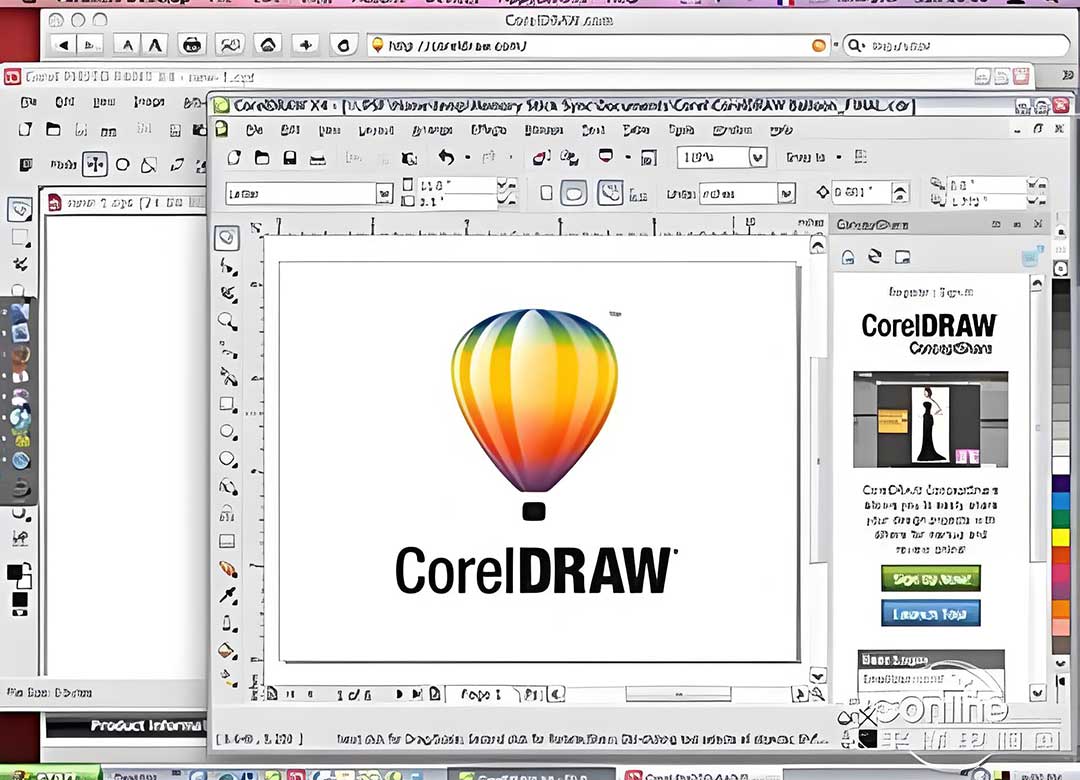
If you’re unsure which format to use, don’t worry - our team is here to help. We can review your files to ensure they’re print-ready, or assist you in converting your design to the correct format (e.g., from .PSD to a print-ready PDF). Sending us your source files (e.g., .AI, .PSD) also allows us to optimize the design for printing on your behalf.
Delivering your printing documents in the right format is key to a smooth, successful project. By choosing PDF (the gold standard) or the appropriate vector/raster format, you’ll avoid errors, save time, and ensure your printed materials look professional and true to your vision. Contact us today if you have questions or need help preparing your files!